You can turn one clean product photo into a short, cinematic ad in Higgsfield. The quality comes from the workflow, not from an expensive first render. Prepare a stable product image, choose one clear shot idea, draft at a lower resolution, inspect the packaging, and spend more credits only on the version that survives review.
I checked Higgsfield’s public Marketing Studio, Create Video panel, model selector, help center and pricing page on 8 October 2026. The labels and costs may change, so treat every credit number in this guide as a dated reference and trust the live estimate shown on your Generate button.
Quick Answer. For the fastest route, open Marketing Studio, filter to Product shot or Motion and Videos, choose a template, upload the product photo, describe what must remain unchanged, and recreate it. For more control, open Video, add the photo as a reference, write a camera-and-lighting prompt, choose a model, start with 5 seconds at 720p and batch size one, then upscale only the approved clip.
What you need before opening Higgsfield
- One high-resolution product photo that you own or are allowed to use
- A plain or visually simple background with clear space around the product
- A short list of packaging details that must not change
- One output format such as 9:16 for Reels and TikTok or 16:9 for YouTube and a website hero
- A simple shot goal such as a slow push-in, an orbit, a macro detail or a clean end frame
Step 1 Prepare one source image that can survive animation
Start with the sharpest front or three-quarter view you have. The product should occupy most of the frame, but it still needs breathing room for a camera move and a platform crop. Remove reflections that hide the label, avoid hands covering the packaging, and make sure the base of the object is visible so the model can understand where it sits.
Write down the non-negotiable details before prompting. For the sample bottle in this guide, those details are the amber glass, black dropper, bottle proportions, centered label and the words VELORA BOTANICAL SERUM. If the source image cannot show a detail clearly, a video model cannot reliably preserve it.
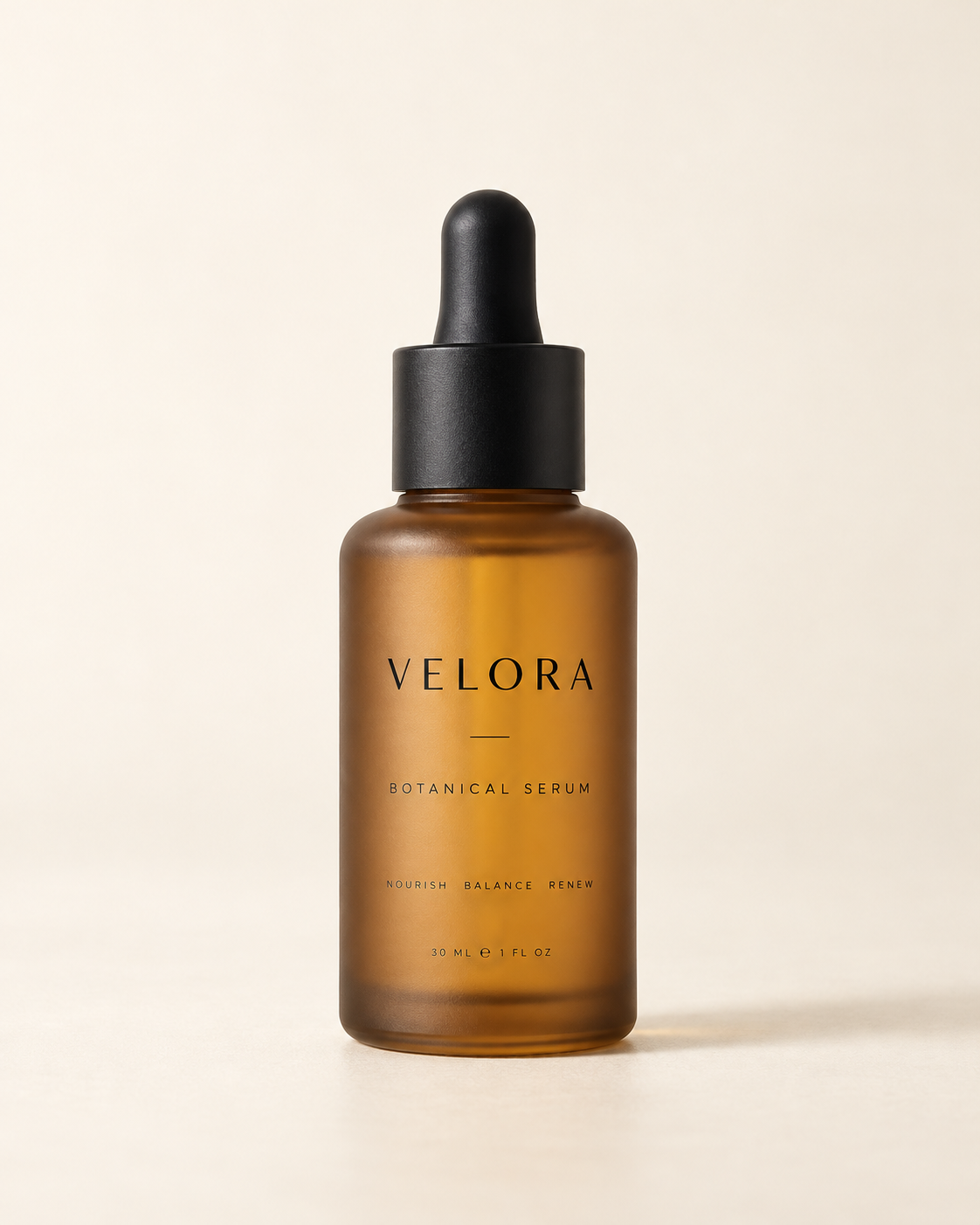
Image Rule. Do not ask the model to invent a new camera angle and preserve tiny label text in the same first test. Begin with subtle motion around a view that already exists in the photograph.
Step 2 Open Marketing Studio
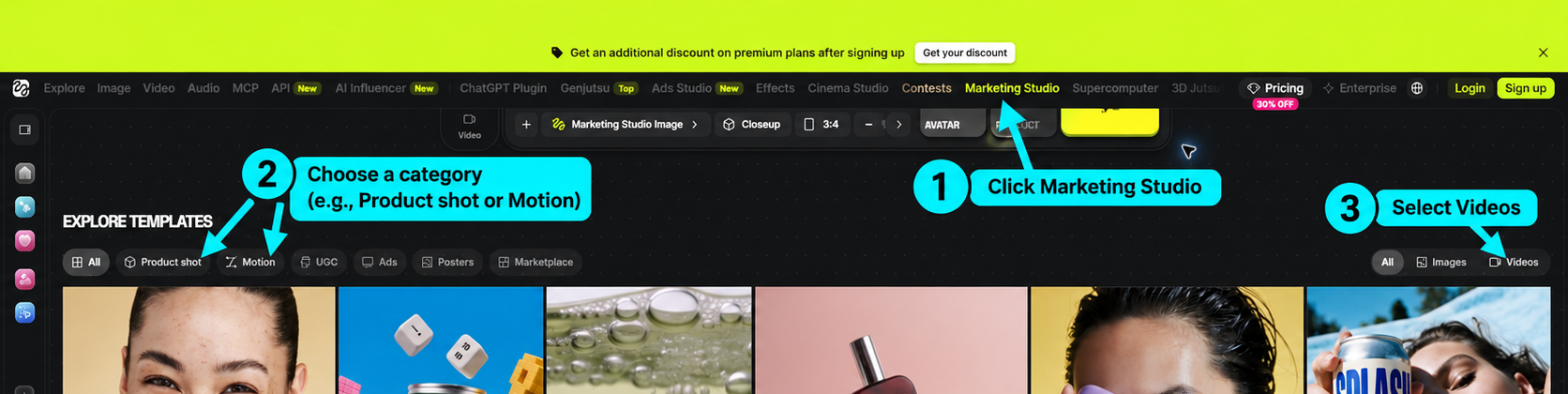
Open Higgsfield and choose Marketing Studio from the top navigation. The studio groups ready-made commercial layouts into Product shot, Motion, UGC, Ads, Posters and Marketplace. For a single packshot, Product shot and Motion are the most direct starting points.
Step 3 Filter for a video template that matches one shot
Choose Product shot or Motion, then select Videos on the right. Do not choose a template only because its finished example looks expensive. Choose it because the camera move and the product scale suit your source photo. A bottle or cosmetic container often works well with a macro scene, controlled push-in, slow orbit or clean packshot reveal.
A template is a starting structure. It does not replace product review. The generated version can still alter the label, cap, proportions or reflections.

Step 4 Open the template and add the product
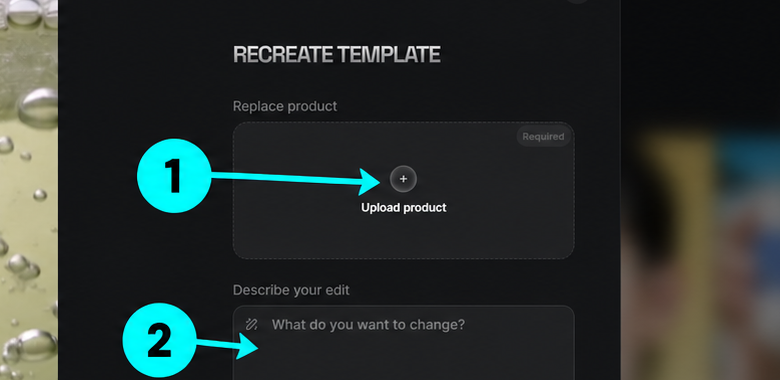
Open a template to reach the Recreate Template panel. The left side shows the template preview. On the right, choose Upload product. In a real campaign, upload only an image you are authorized to use. This guide stops at the public interface and does not upload or generate anything in Higgsfield.
Step 5 Describe the edit and lock the packaging
Use the edit box to state what should change and what must stay fixed. A good prompt names the product, material, lighting, camera move, background, pace and constraints. Keep the first attempt to one shot. Multi-shot prompts make it harder to diagnose why the packaging changed.
Replace the featured product with the uploaded VELORA serum bottle. Preserve the exact bottle shape, amber glass, black dropper, centered label and readable product name. Create a premium macro skincare commercial with soft golden backlight, a slow controlled camera push-in, shallow depth of field and a clean ivory set. Keep one bottle only. No new text, no warped packaging, no floating product and no fast camera motion.
Step 6 Use Create Video when you need manual control
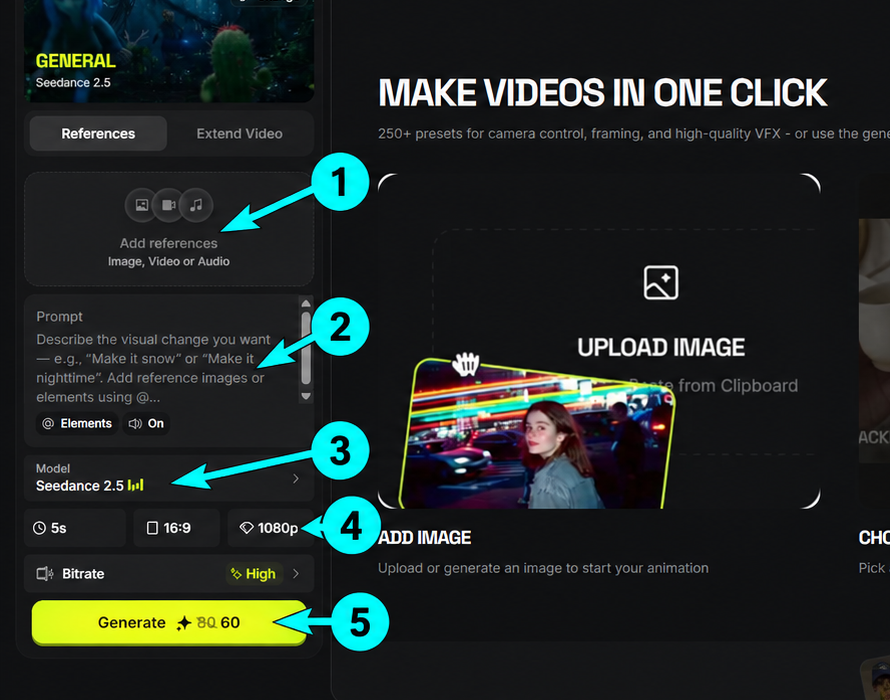
Marketing Studio is faster, but the main Video workspace gives you direct control over the reference, prompt, model, duration, aspect ratio, resolution and bitrate. Open Video, keep Create Video selected, and add the product image under References. The public interface also shows an Elements control for reusable assets when available to the account.
Use this route when a template forces the wrong composition or when you already know the exact camera move you want.
Step 7 Choose the model after you choose the shot
Click the Model row to compare the models available in your account. The current public selector includes options such as Seedance, Kling and other video models. Availability, names and prices change. Decide according to the shot, reference-image control and the live credit estimate, not according to the newest badge.

| Use case | Practical starting choice | Dated credit reference |
|---|---|---|
| Cheapest rough motion test | Seedance 1.5 at 720p | About 3 credits for 5 seconds |
| Low-cost reference-led draft | Kling Omni 3 Image Reference at 720p | About 5 credits |
| Balanced 720p draft | Kling 3.0 or Wan 2.6 | About 7 credits |
| Higher-cost Seedance test | Seedance 2.0 at 720p | About 22 credits for 5 seconds |
| Higher resolution Seedance test | Seedance 2.0 at 1080p | About 45 credits for 5 seconds |
| Native 4K test | Seedance 2.0 at 4K | About 110 credits for 5 seconds |
Cost Warning. These figures were read from Higgsfield’s public pricing comparison on 8 October 2026. Promotional discounts, plan entitlements and per-generation costs can change. The estimate beside Generate is the authoritative number for your current setup.
Step 8 Set the cheapest useful draft
Use five seconds for the first test. Set the final aspect ratio before generating so the model composes the shot correctly. Use 9:16 for TikTok, Reels and Shorts, 16:9 for YouTube or a wide site banner, and 1:1 for a square feed placement. Draft at 720p when the model offers it, keep one output per generation, and reserve high bitrate or 4K for the selected clip.

| Setting | Low-cost draft | Final delivery |
|---|---|---|
| Duration | 5 seconds | 5 to 8 seconds per shot |
| Aspect ratio | Choose the final platform ratio | Keep the same ratio unless you plan to reframe |
| Resolution | 720p | 1080p or upscale the approved clip |
| Batch | 1 | Generate variants only after the direction works |
| Camera | One slow move | Add complexity shot by shot |
Step 9 Generate one version and inspect the product
Read the credit estimate on the Generate button before clicking. Review the result at normal speed and frame by frame. Check the label, cap, product proportions, shadow, contact with the surface, reflections and the final frame. If one detail fails, change one variable at a time. A slower camera or simpler background often fixes more than a longer prompt.

Review Gate. Do not upscale a clip with a wrong label or distorted package. Upscaling sharpens the error; it does not repair product identity.
Step 10 Export only the approved clip
Once the motion and packaging pass review, download the result or use the available post-production tools. Higgsfield’s official image-to-video guide describes options for upscaling, reframing and adding audio. Keep the clean master, then create separate platform versions so each crop and text-safe area can be checked.

A four-shot plan that looks more expensive than one long generation
A production-company feel usually comes from editing a few controlled shots together. Generate each shot separately, approve it, and assemble the selected clips in your editor or in Higgsfield’s available editing environment.
| Shot | Purpose | Direction |
|---|---|---|
| 1 Hero reveal | Establish the product | Slow push-in, clean set, label front-facing |
| 2 Material detail | Sell texture and quality | Macro move across glass, metal or fabric |
| 3 Motion signature | Create a memorable visual | Controlled orbit, droplets, particles or light sweep |
| 4 Packshot ending | Leave a usable final frame | Static hold with negative space for copy added later |
Prompt formula for product shots
[Product and immutable details] + [single action] + [camera move] + [lighting] + [set and surface] + [pace] + [constraints]Example
One amber glass serum bottle with a black dropper and centered VELORA label. The bottle remains upright on an ivory stone surface. Slow 15-degree camera orbit with a gentle push-in. Warm rim light from the left, soft frontal fill, subtle reflection, shallow depth of field. Premium skincare commercial, deliberate pace. Preserve the exact bottle proportions and label. No extra bottles, no invented text, no hand, no floating object, no fast motion.The lowest-cost workflow that still gives you control
- Plan the shot on paper before generating anything.
- Use one clean source image and one camera move.
- Draft at 720p for five seconds with batch size one.
- Reject packaging errors before rerolling. Change only the camera, prompt or background that caused the failure.
- Upscale or regenerate at higher quality only after the motion works.
- Add logos, disclaimers and exact typography in an editor instead of asking the video model to draw small text.
A two-shot draft on a five-credit option can start around 10 credits. One additional reroll brings the working total to roughly 15 credits before upscaling or final high-resolution generation. This is an illustration, not a promise, because model and post-production prices change.

What else you can do in Higgsfield
| Goal | Relevant Higgsfield area |
|---|---|
| Product ads and template-led commercial shots | Marketing Studio |
| Cinematic scenes with more camera and lighting control | Cinema Studio |
| Start from a product page or URL | Click to Ad |
| Product packshots, macro scenes and stylized placements | Product and commercial apps |
| UGC-style or talking-head advertising | Marketing Studio UGC formats |
| Resize one clip for several channels | Reframe |
| Improve resolution, frame rate or flicker | Upscale, FPS Boost and Deflicker |
| Voiceover and synchronized speech | Audio and Lipsync Studio |
| Remove unwanted objects from a clip | Video Edit |
Common problems and practical fixes
| Problem | Likely cause | Fix |
|---|---|---|
| Label changes between frames | Small text and strong motion | Use a sharper front view, slow the move, shorten the clip and add exact text after generation |
| Bottle or package changes shape | The prompt asks for a new angle the photo does not support | Reduce the orbit, keep the source angle and name the shape as an immutable detail |
| Product floats | No surface relationship | Name the surface, contact shadow and upright position |
| Background distracts from the product | Too many scene instructions | Return to one surface, one key light and one background color |
| Camera feels cheap or frantic | Several moves in five seconds | Choose one move and describe it as slow, controlled and deliberate |
| Flicker or unstable reflections | Complex highlights and fast motion | Simplify the lighting, regenerate, then test Deflicker on the approved direction |
| Crop cuts off the product | Ratio chosen after composition | Set the platform ratio first and leave safe space around the packshot |
| Credits disappear during testing | High resolution, long duration or multiple outputs | Draft at 720p, five seconds and batch size one; upscale the winner |
Frequently asked questions
Can Higgsfield make a product video from one image
Yes. Higgsfield’s official product and image-to-video pages describe workflows that start from a single product image. Results still need review because packaging, logos and small text can drift between frames.
Which Higgsfield workflow is best for product ads
Use Marketing Studio for template-led ads and product shots. Use Create Video or Cinema Studio when you need more direct control over the model, prompt, camera, lighting or sequence.
How do I reduce Higgsfield video costs
Draft at 720p, use five-second clips, keep batch size at one and test one camera move at a time. Upscale or switch to a more expensive model only after the product remains accurate.
Should I generate text inside the video
Use the video model for large, simple display text only when the result is acceptable. Add legal copy, prices, ingredients and small product text in a video editor so the words remain exact and readable.
Can one image really look like a studio commercial
One image can produce a convincing short hero shot when the camera move is modest and the source image is strong. A complete premium ad usually looks better when it combines several approved shots, consistent lighting, sound design and a clean end frame.
Editorial conclusion
The cheapest reliable approach is to treat Higgsfield like a shot generator rather than a magic one-click studio. Lock the product first, choose one visual idea, draft cheaply, review the packaging, and spend more only on the shot that earns it. That process gives a small team the best chance of producing a polished ad from one photograph without turning every experiment into an expensive render.
For a wider comparison of production and editing options, see our guide to the best AI tools for video editing and creation.